Path 1: mirror an existing panel (VNC)
Many panels can serve their screen over the network: Siemens Comfort Panels via Sm@rtServer (which is standard VNC — any VNC client connects, RealVNC and TightVNC included), Weintek and PanelView Plus units via their built-in VNC servers. The tablet shows the same screens the operator already knows, zero rebuild.
- Wins when: the panel works and you want a second view — monitoring from the mezzanine, a supervisor's walk-around screen.
- Honest limits: the mirror dies with the panel — as a backup plan it's worthless the day the panel goes dark; one more password/VNC port to manage; laggy over weak Wi-Fi; and Siemens' Unified panels dropped the native Sm@rtClient route in favor of a web client.
Path 2: talk to the PLC directly
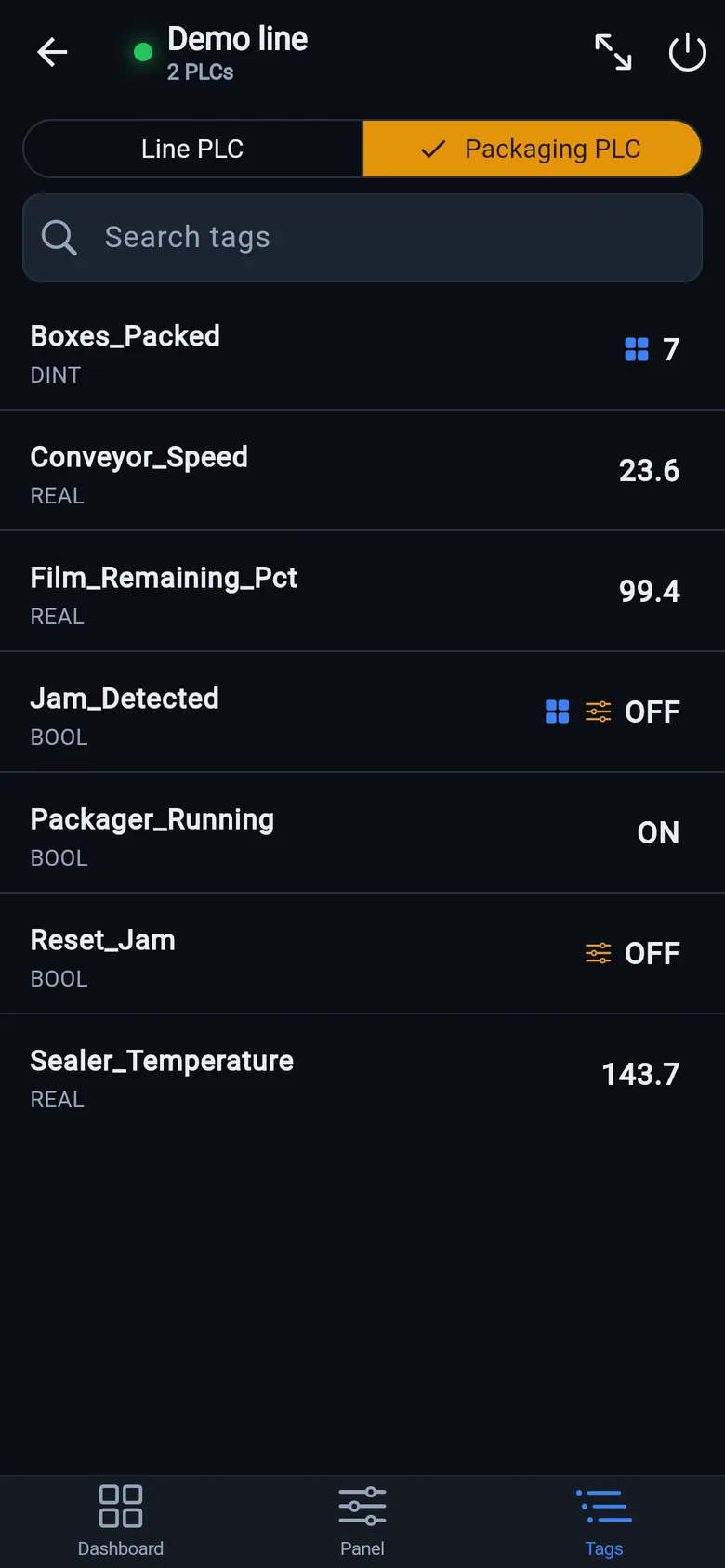
The tablet runs its own HMI app speaking the controller's protocol — the panel isn't in the loop at all. The free LineKeeper Go works this way: EtherNet/IP with automatic Logix tag lists, Siemens S7, Modbus TCP; screens built by drag-and-drop or converted from the panel project export with the free in-browser converter.
- Wins when: the panel is dead, obsolete or oversubscribed — this path doesn't care; it's also the honest backup plan, because it works precisely when the panel doesn't.
- Honest limits: screens are rebuilt or converted, not pixel-identical; S7 classic access needs PUT/GET enabled and non-optimized DBs; and no tablet is a safety device — the hardwired E-stop stays.
Making it plant-worthy
- Mount it: a VESA-adapter case on a pole mount puts the screen at eye level — a tablet in a drawer is not an HMI.
- Kiosk it: on iPad, Guided Access locks the device to one app with a passcode; the operator gets buttons, not Safari.
- Power it: permanent USB power from the cabinet (a PoE splitter is the tidy route); batteries are for walk-around use only.
- Network it: a client-mode Wi-Fi bridge into a spare switch port gives the tablet the machine network without touching plant IT — details in the PLC-over-Wi-Fi guide.
- Gloves: capacitive screens and work gloves disagree — either touch-capable gloves or generous button sizes.
A temporary screen in minutes
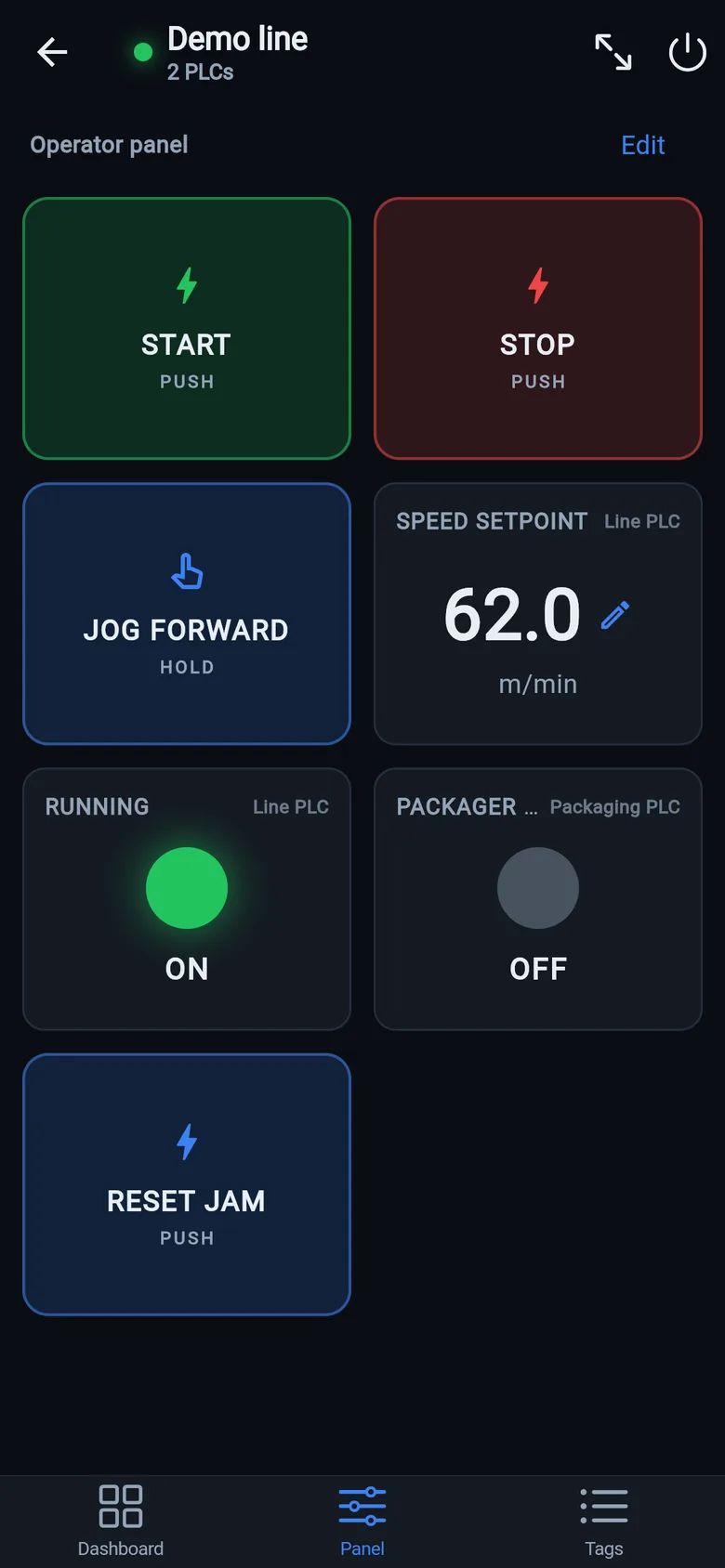
Zero-config tag browser for Logix, drag-and-drop dashboard, operator panel, alarms — no changes to the PLC logic.
 On a desktop? Scan with your iPhone or iPad to get the free app.
For the machine itself: LineKeeper On is a self-contained 7″ or 10″ touchscreen built to stand on the machine while the replacement panel is repaired or shipped — the same drag-and-drop screens, plus what a phone shouldn't carry:
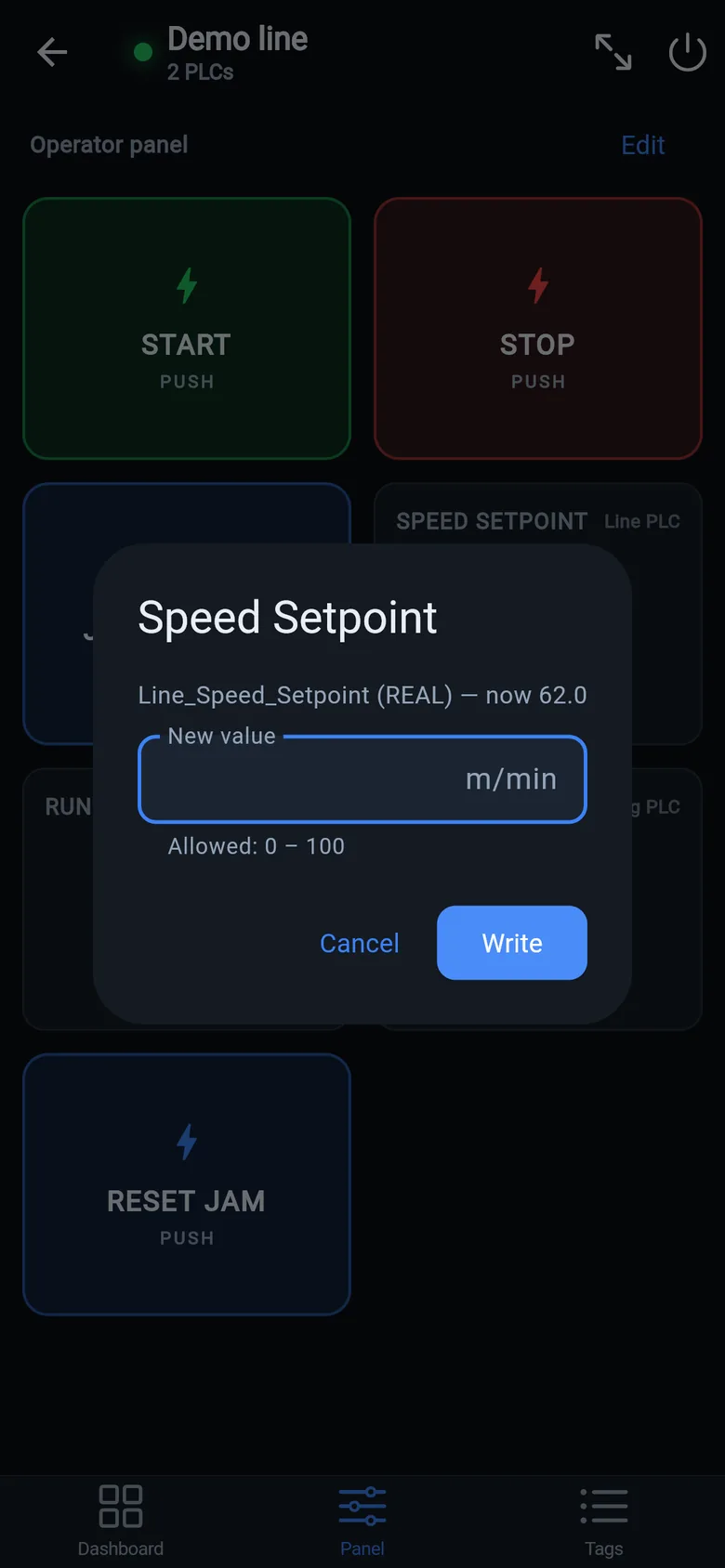
- Live view of every mapped tag, refreshed twice a second — plus per-tag unlocked writes, confirmed and audit-logged
- Operator panel: start/stop, indicators, setpoints — hold-to-run releases when your finger lifts (not a safety function)
- Stays useful after the repair: data logging, dashboards, machine diagnostics
Small hardware that helps while the panel is out: a Wi-Fi bridge or a USB-C Ethernet adapter to get the phone onto the machine network, a pole-mount arm for the temporary screen, an IP67 box for the bridge. What each one is for, and when you don't need it, is on the gear list.